
Making a piece of AI voice should be simple.
Until now, though, you had to name the work first, choose the language and the voice again, and then open the work page just to hear the result. No single step is hard; together they are enough to break your rhythm.
So this update did not add more buttons. It took the unnecessary steps away.
Creating AI voice now takes two steps: paste your text, press generate.
1. Paste, generate: text to speech in two steps
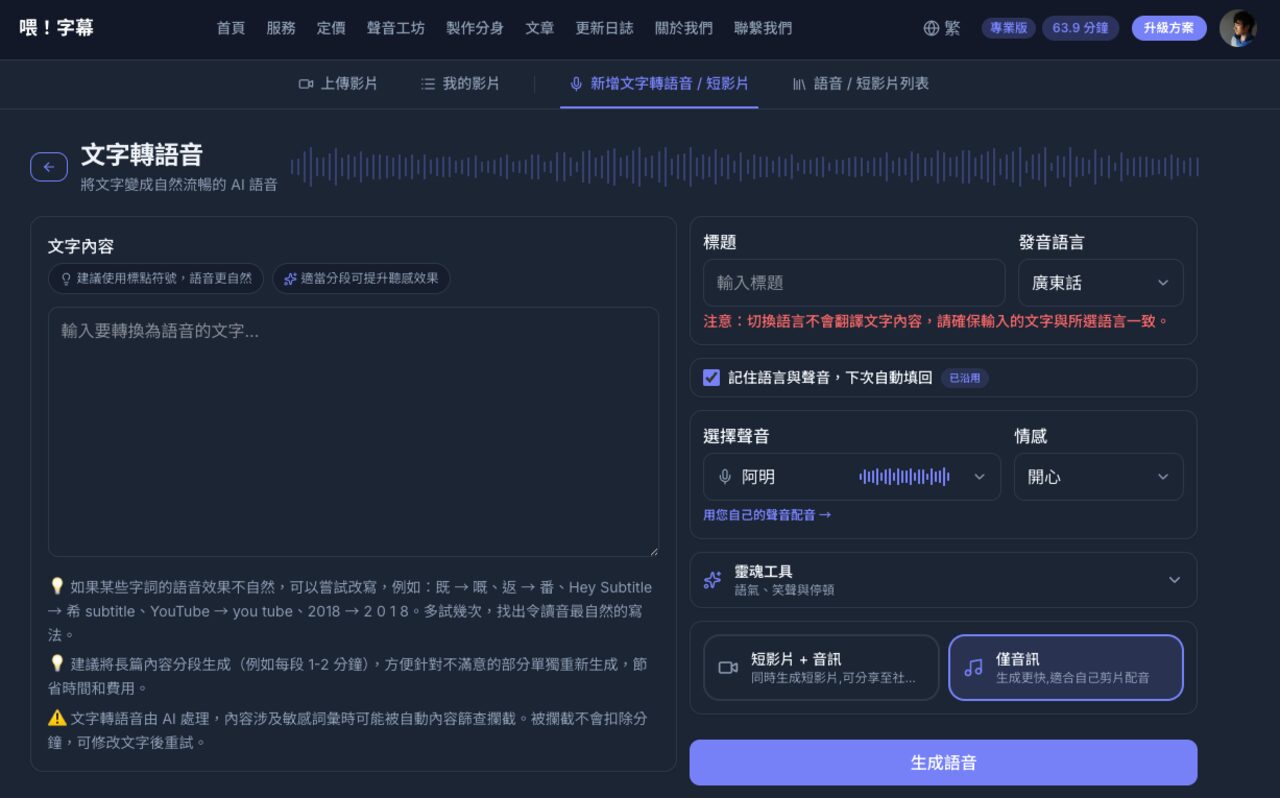
The redesigned page puts the focus back on the thing that matters most: what you want to say.
Text content is the only required field. If your usual language and voice are already remembered, you can paste and generate right away.
Don't want to write a title? Leave it blank. We take the opening of your script as the title, so your works are still easy to tell apart in the list. If the script holds nothing but tags or blank space, the work is named by the time it was generated.
Choose your language, voice, speed and volume once. Tick "Remember language, voice, speed & volume for next time" and all four fill themselves in from then on. The setting is stored with your account, so it follows you to another device.
Unticking it also clears what was remembered, so a setting you have long forgotten never reappears later.
If a voice is gone, we will not quietly swap in another. When a cloned voice expires or is deleted, the language stays and the voice is left empty for you to choose again. Generating quickly matters, but using the right voice matters more — we would rather not have you spend minutes and find out afterwards.
More control is still one click away. Tone, laughter and pauses now sit together under "Spirit Tools": out of the way while you write, open when a delivery needs fine-tuning.
2. No need to open every work — play it from the list
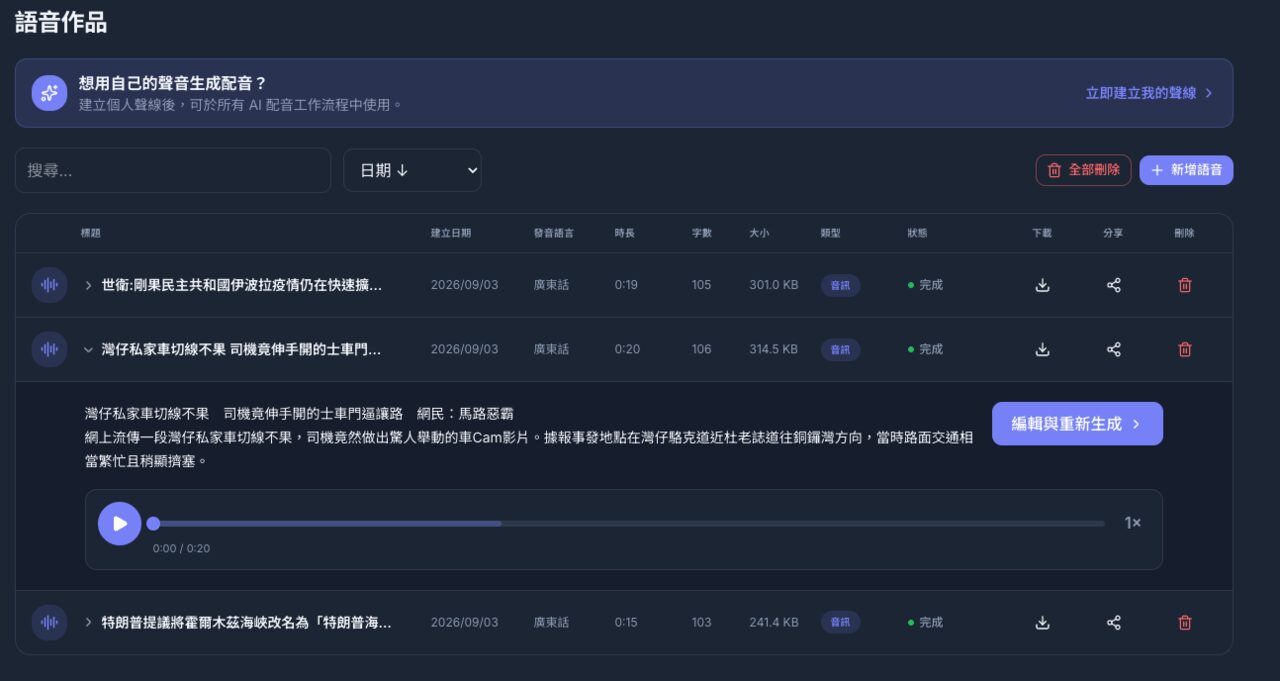
Once a voice is generated, the fastest way to check it is to listen to it.
Click any row in the list and the full script and a player open in place. Click again to collapse — no more moving back and forth between the list and the work page.
Long recordings play while they load. The player no longer waits for the whole file to download before it starts; press play and sound arrives almost immediately. On long scripts or a mobile connection, the difference is obvious.
The progress bar also shows how much has buffered, and dragging to a point loads and plays from there.
Downloading and sharing are no longer a guessing game. Both buttons now show progress and a percentage throughout. Even on a large audio or video file, you can see the system working instead of staring at a screen that never reacts.
The mobile action row has been reorganised too: one download button and a format menu in the same place, for audio and short video alike.
If generation fails, the reason is stated plainly. The failure reason and the way to regenerate appear on the row itself. A dropped connection is no longer reported as a content violation, and when the service is busy, the message says clearly that nothing was deducted.
Problems cannot always be avoided, but you should never have to guess what happened.
3. After you sign in, the first thing you see is a place to start
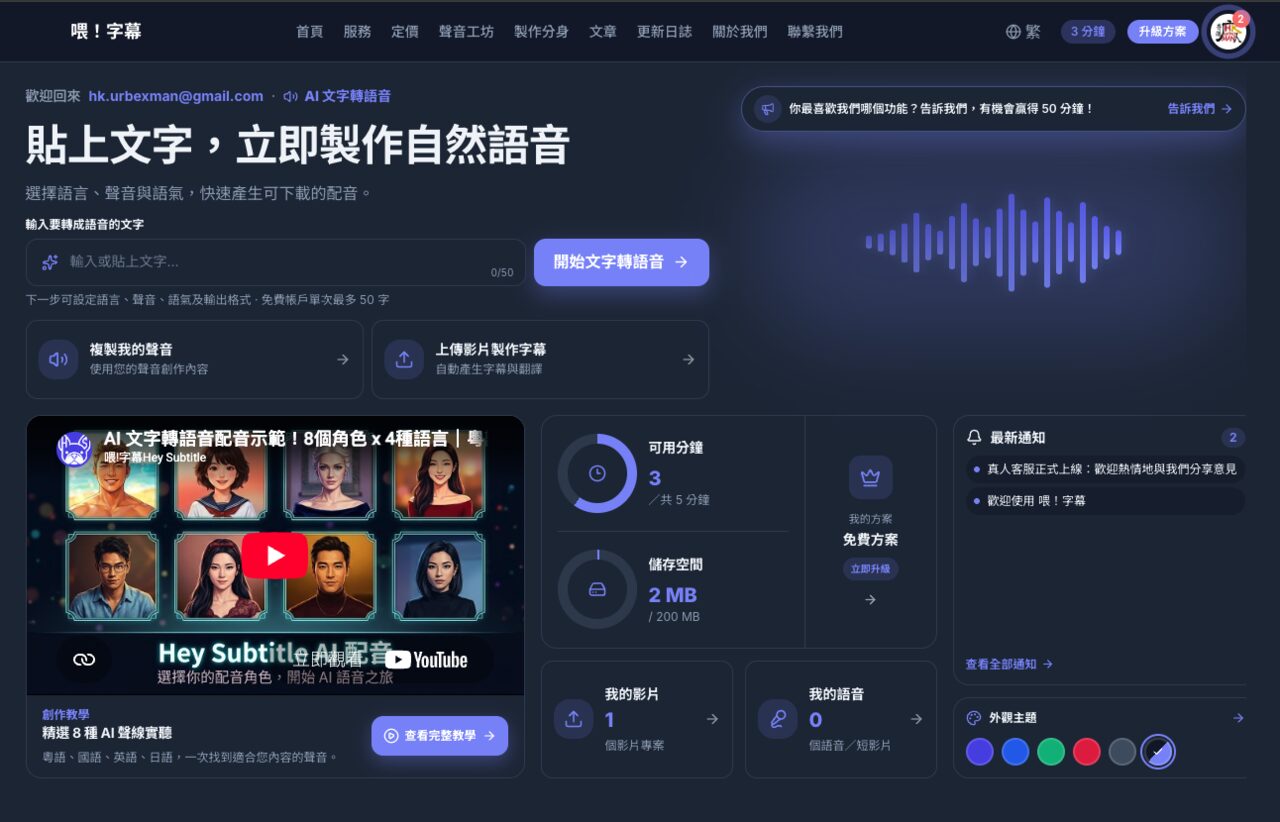
The home page you land on after signing in has been redesigned.
The first thing on it is a text box. Paste your script, press "Start text to speech", and you are taken to the full settings page to carry on.
You no longer need to remember which menu a feature lives in, or hunt across pages for the way in.
The same page also gathers:
- Minutes left, storage used and your current plan
- How many video and voice works you have, with a shortcut to each
- The latest notifications
- Voice cloning, and subtitling an uploaded video
- The appearance theme switcher
A first-time user can start straight away, and a regular one gets back to their usual workflow faster.
4. Before you pay, only what actually needs confirming

Checkout is the last step before a plan begins, and it is usually the page carrying the most text and the most hesitation.
The new checkout is a single-column receipt. Only four things stay in front of you:
- The plan and billing period you chose
- The minutes included each period
- What you actually pay today
- The two billing terms that govern it: auto-renewal, and minutes that do not roll over
Plan contents, the full terms and payment troubleshooting move into sections you can expand. They are there when you want them, and out of the way when you don't.
The button says what happens next. It names the amount and says you are going to Stripe to pay securely; the line above it says you are leaving the site and will be brought back automatically.
If you do not complete payment, nothing is charged.
Pay in the currency and method available where you are. Stripe shows the currencies and payment methods available in your region, including Visa, Mastercard, American Express and UnionPay; on supported devices, Apple Pay or Google Pay may appear as well.
The whole payment is handled securely by Stripe, and Hey Subtitle never stores your card details.
Fewer steps, more creating
This update did not try to make the interface look more complex, or more "professional".
We wanted the opposite: every screen a little clearer. Paste to start, listen the moment it is done, see progress while it downloads, and know what you are buying before you pay.
From the first line you type to the first voice you hear, the distance should be as short as possible.
That is the change that matters most in this release.