
Stop Regenerating Over One Word: The New Pronunciation Replacement List | Hey Subtitle
A text-to-speech run often comes down to one or two words.
The whole passage sounds natural, except for a few characters read the wrong way. Nothing is wrong with what you wrote — only the pronunciation is. But to fix it you have to go back to the text, rewrite it, and generate again. And every regeneration costs minutes.
If you use text to speech often, you know the pattern: today you finally find the spelling that works, and next week, on a new script, you have to find it all over again. The experience never accumulates. The minutes keep going.
So we built pronunciation replacements. Teach the system a word once.
Next script: the same word sends you round again.
Next script: the list applies itself. No retrying.
1. Why AI reads a word the wrong way
Chinese is full of characters that share one written form but carry different sounds, and a speech model has to infer the reading from context. That inference is not always right. Cantonese makes it especially visible: colloquial usage and written form do not map onto each other cleanly, so the character the model sees is not always the sound you had in mind.
Take this sentence:
「我地返到公司搵咗好耐,都無人應,唯有當佢放咗假,但佢咁樣做係唔啱架。」
The model may read 搵 as 温, 無 as 毛, and 架 as 假. Each reading is defensible on its own; together they are not the sentence you wrote.
The fix has always existed: write 搵 as 穩, write 架 as 嫁, and it reads correctly. The hard part is not knowing the trick — it is remembering, every single time, how you spelled it last time.
2. Let the system remember it for you
Step 1: Open pronunciation replacements
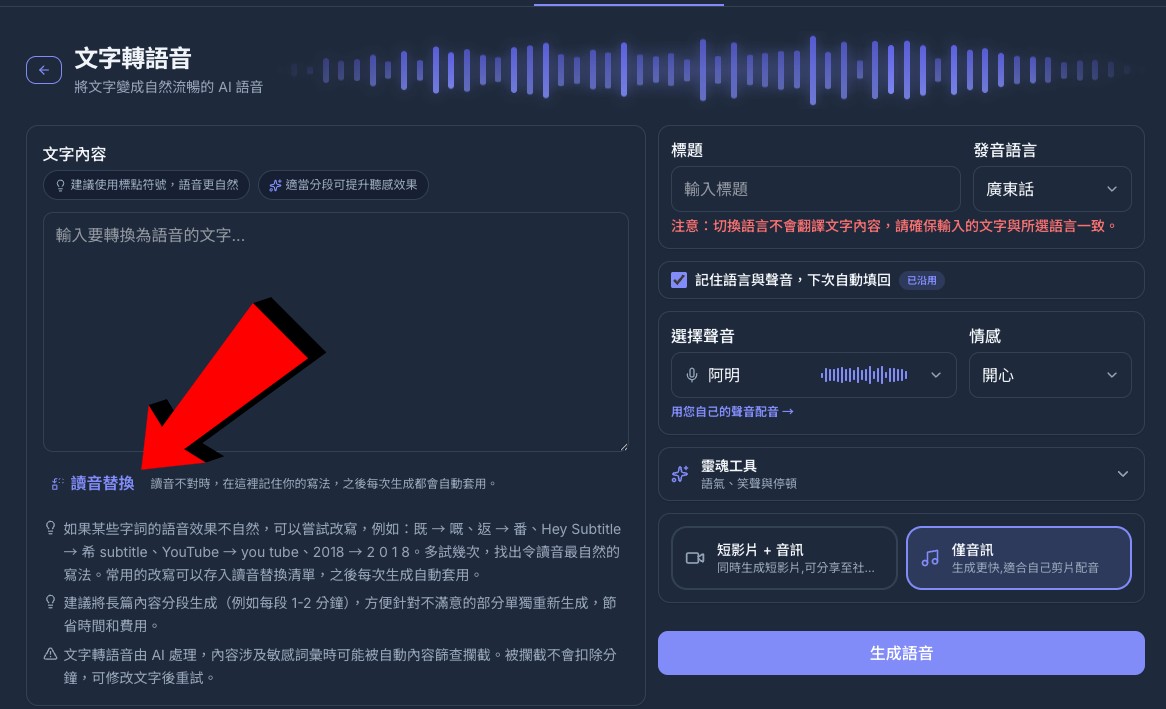
On the text to speech page, it sits directly below the text box.
Step 2: Add a replacement
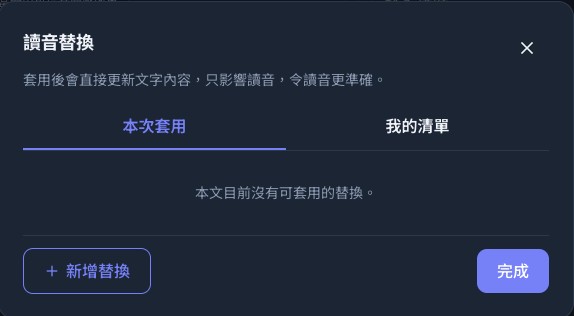
The panel has two tabs, This generation and My list. Start with Add replacement at the bottom left.
Step 3: Fill in the original and the replacement
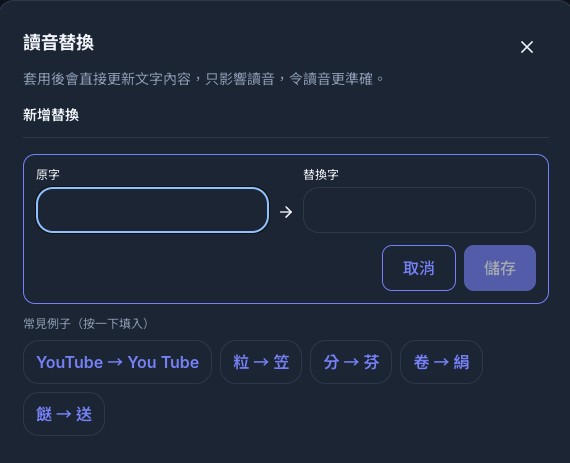
The original character goes on the left, the replacement on the right — 搵 → 穩, 架 → 嫁, 當 → 檔. Common examples sit below the form; tapping one fills the form in, and nothing is saved until you confirm.
That is how the list builds up.
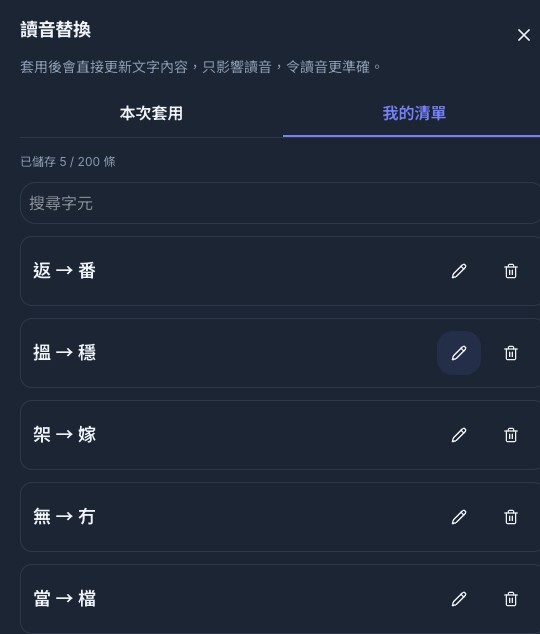
Step 4: Paste your text and see the count immediately
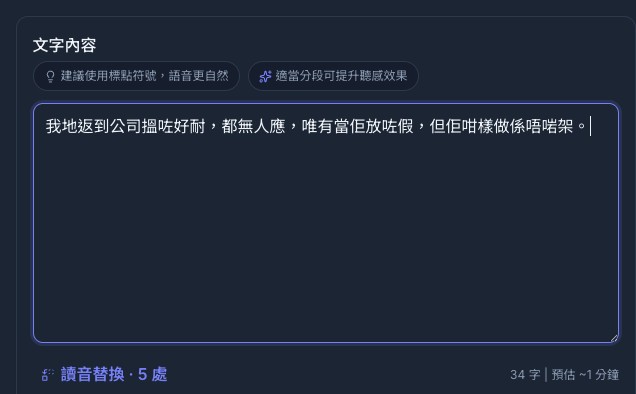
Paste the same text back into the box and the entry updates to Replacements · 5 matches. You do not have to check line by line yourself.
Step 5: Confirm before generating
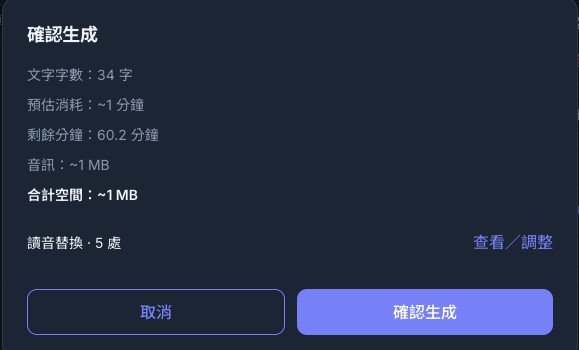
Press Generate Voice and the confirmation dialog shows how many places will be replaced this time. Review them one by one with Review / adjust.
Step 6: Review each rule and decide what applies this time
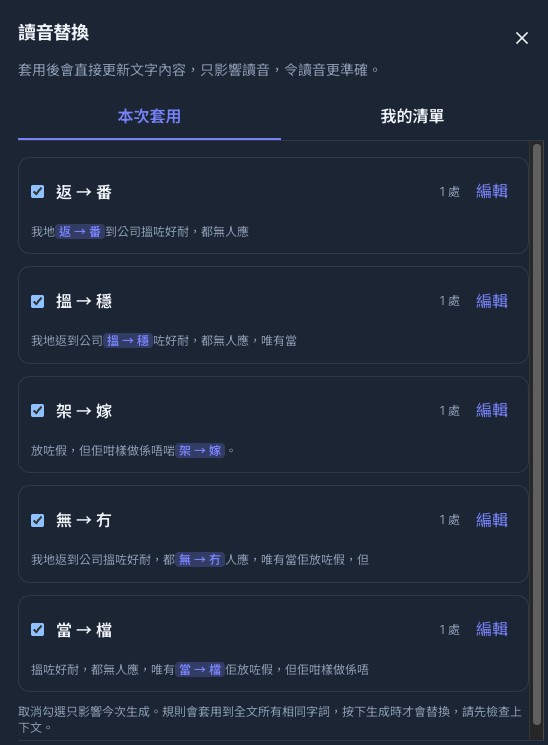
Every matched rule is listed with its hit count and the surrounding text. All are ticked by default; untick any you do not want this time — that affects this generation only, and your list stays as it is.
Press Done, then Confirm. This time, what you hear is the reading you meant.
3. A few things worth knowing
- It changes the pronunciation, not what you are saying. Once applied, the work's text is updated to what was actually spoken, so you can tell a content problem from a pronunciation one.
- A rule applies to every matching word in the text, and only at the moment you generate. Check the surrounding text first.
- Tone, laughter and pause tags are never replaced. Tags such as (laughs) and pause markers are protected.
- Up to 200 rules per account, all in one list. Whichever speaking language you pick, the same list applies.
- Adding, editing or deleting a replacement costs no minutes. Minutes are counted only when you generate speech.
Not just minutes
One mis-read character is a small thing. Multiply it by the minutes each regeneration costs, then by every script you write, and it stops being small.
This feature does not make the AI smarter. It simply remembers the answer you already knew.
If there is something you would like us to improve, tell us through live chat on the site, or email support@heysubtitle.com.