
Seeing This Error?
You drag your video into the upload area and the system throws a "no audio track" error.
Your video isn't broken, and it's not a platform bug — your video simply has no audio. This is more common than you'd think:
- Presentation videos exported from PowerPoint / Keynote
- Screen recordings where you forgot to enable the microphone
- Footage shot on silent mode
- Videos where you intentionally removed the original audio to re-dub
These videos can't be transcribed (there's nothing to transcribe), but you can still add an AI voiceover to them. Let's first explain what the platform can do, then pick the right approach for your situation.
What This Platform Can Do
Most people think this is just a "subtitle tool" — but there are actually two completely different workflows:
Route A — Video with audio Upload video → AI auto-transcribes subtitles → Edit / Translate → Generate multilingual AI dubbing
Route B — No audio / writing from scratch Open Text-to-Speech → Paste your script → Choose an AI voice → Generate voiceover → Download MP3 → Combine with your video in a video editor
If your video has no audio, just use Route B. No original audio needed at all.
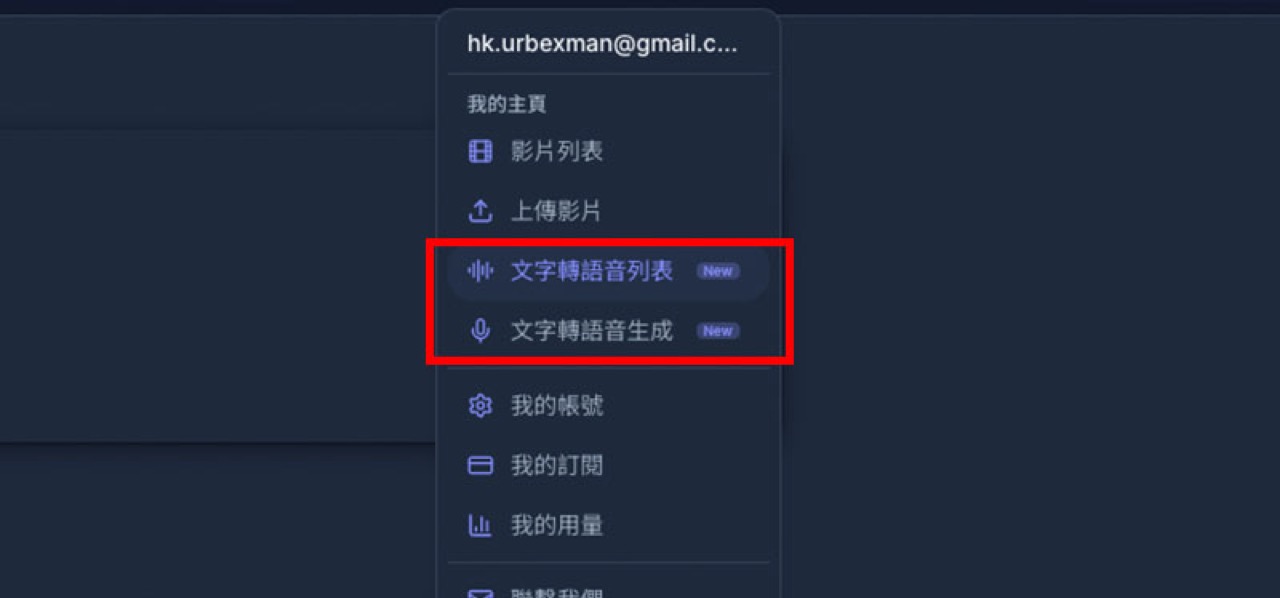
How to Find Text-to-Speech?
After logging in, click your account avatar in the top right — "Text-to-Speech" is right there in the menu.
Different People, Different Workflows
YouTubers / Video Creators
Your situation: You have a batch of videos to localize into multiple languages, or some footage with poor audio quality.
- Upload the original video — AI auto-transcribes subtitles
- Fix typos and adjust the timeline in the subtitle editor
- Choose your target language (Cantonese, Mandarin, English, Japanese, etc.) and generate AI dubbing in one click
- Download the video with subtitles and publish
If your video has background music, mute the BGM before uploading — transcription accuracy will improve significantly.
Educators / Online Course Creators
Your situation: You have a large batch of presentation slides to turn into narrated videos, or you forgot to enable the mic during screen recording.
- Write out your narration script as plain text
- Open Text-to-Speech and paste your script
- Choose a clear, professional AI voice suitable for educational content
- Generate the voiceover and download the MP3
- Use a video editor (CapCut, Premiere, Final Cut, DaVinci) to combine the MP3 with your presentation
Each lesson can be generated independently and assembled at the end. No re-recording needed — entire batches done in hours.
Marketing / Ad Creative Teams
Your situation: You have existing product videos or design assets and need to quickly add voiceover or create multilingual versions.
- If the video has audio: upload it, let AI transcribe, then translate and re-dub in the target language
- If the video is silent: go directly to Text-to-Speech, enter your ad copy, and generate the voiceover
- Need multiple language versions? Use the same script, switch the language, and regenerate
One ad campaign — Cantonese, English, and Japanese versions — without hiring separate voice actors. Cost drops dramatically.
Students / Online Learners
Your situation: You want to add narration to study notes or presentation recordings, or create multilingual study materials.
- Write your explanation notes as plain text
- Open Text-to-Speech, paste the content
- Choose a natural-sounding AI voice
- Generate and download the MP3, then combine with your slides in CapCut or any editor
Great for summarizing lectures, creating revision videos, or building study materials in multiple languages.
Common Questions About Silent Videos
Q: Can I upload a silent video and then add dubbing on the platform? Not directly — the upload workflow requires audio to trigger transcription. For silent videos, go straight to Text-to-Speech and combine the audio with your video in an external editor.
Q: What format does the generated voiceover download in? MP3 — compatible with CapCut, Premiere, Final Cut, DaVinci, and all major video editors.
Q: How's the audio quality? We use industry-leading AI dubbing engines with emotion-aware processing. Quality is at the higher end of commercial AI voiceover — good enough for most use cases straight out of the box.
Summary
| Your situation | Recommended approach |
|---|---|
| Video has audio, want subtitles | Upload → Auto-transcribe |
| Video has audio, want multilingual dubbing | Upload → Transcribe → Translate → AI dub |
| Silent video, want narration | Text-to-Speech → Paste script → Download MP3 → Combine |
| Writing voiceover from scratch | Text-to-Speech → Enter text → Choose voice → Generate |
Whatever your situation, you can start with a free trial — 5 minutes included, no commitment needed.