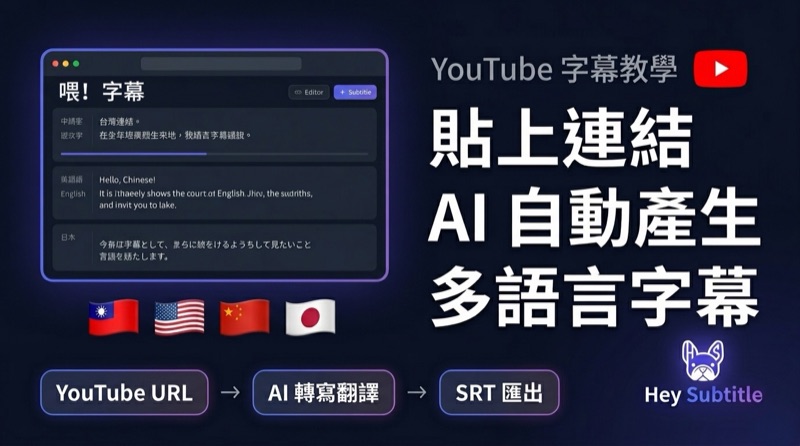
YouTube Subtitle Tutorial: Paste a Link, AI Auto-Generates Multilingual Subtitles
Why Do You Need Multilingual YouTube Subtitles?
YouTube is the world's second-largest search engine, with over 1 billion hours of video watched every day. But if your videos only have subtitles in one language, you're voluntarily giving up 95% of your potential global audience.
Multilingual subtitles aren't just about translation — they directly affect whether your videos can be discovered by viewers who speak other languages and whether YouTube's algorithm recommends your content to more regions.
The problem? The traditional approach is painfully tedious. You need to download the video, transcribe it with desktop software, translate manually, and upload each language one by one. Just one language takes over 30 minutes.
Now, with Hey Subtitle's YouTube URL feature, the entire process takes just 3 minutes.
Complete Step-by-Step Tutorial
Step 1: Log In and Select Language
After logging into Hey Subtitle, click "Upload Video". On the upload page, first select your video's source language.
This step is crucial: if your video is in spoken Cantonese, select "Chinese Traditional Spoken"; if it's a formal narration, select "Chinese Traditional Written". Choosing the correct language setting significantly improves AI transcription accuracy.
Step 2: Paste the YouTube Link
In the upload area, switch to "YouTube URL" mode and paste your video link. No need to download the video — the system will automatically extract the audio for processing.
Note: Please ensure this is your own video. The system is designed for creators to process their own content.
Step 3: Wait for AI Transcription
After pasting the link, the system automatically starts processing. The AI analyzes the video audio and generates an accurate transcript. The entire process typically takes just a few minutes, depending on video length.
You can monitor the progress on the video list page. Once complete, the status turns green.
Step 4: Review Subtitle Quality
Click the subtitle language name to enter the editor. You'll see that AI-generated subtitles are perfectly synced with the video timeline.
Try switching to fullscreen mode for a more comfortable viewing experience. AI transcription accuracy is typically above 90% — just click to fix any occasional errors.
Step 5: Add Multilingual Translations with One Click
This is the best part. Go back to the video list, click the "Translate" button, and select your target languages — for example, English and Simplified Chinese.
Translation is fully handled by AI and doesn't consume your minutes. Within seconds, your multilingual subtitles are ready.
Step 6: Review and Edit Translations
AI translation quality is excellent, but there may be occasional inaccuracies with proper nouns like channel names or personal names. We recommend a quick review in the editor.
Simply click to edit any errors — the system auto-saves your changes.
Step 7: Export SRT Subtitle Files
In the editor, click the "Export" button, select SRT format, and download the subtitle file. Export a separate SRT for each language.
Step 8: Upload to YouTube
Go back to YouTube Studio and open your video settings:
- Click the "Subtitles" option
- Select "Add Language" (e.g., English)
- Upload the English SRT file you just exported in the "Subtitles" field
- Preview and click "Publish"
- Repeat for each additional language (e.g., Simplified Chinese)
Done! Your video now has multilingual subtitles. Viewers can freely switch languages in the player's subtitle menu.
Why No Video Download Required?
Traditional subtitle tools require you to download the video first. Hey Subtitle's YouTube URL feature eliminates this step:
- Saves time — No waiting for downloads; audio is extracted directly from YouTube
- Saves storage — No need to keep a copy of the video on your computer
- Faster processing — The system only extracts the audio track, which is much faster than processing the full video file
Tips
- Translation doesn't consume minutes — even free plan users can translate
- SRT format has the best compatibility — we recommend using it
- After uploading subtitles, YouTube needs a few minutes to process them before viewers can see them
- Subtitle languages influence YouTube's recommendation algorithm, helping your videos reach more regions
- The free plan includes 5 minutes per month, enough for short videos; upgrade for more minutes
Try It Now
No software to download — just open your browser and get started. Paste your YouTube link, and in 3 minutes your video will have multilingual subtitles.